You send a text message from Marketing Cloud, check what was sent in Contact Builder, reports, or data view, and suddenly you are met with a puzzle:
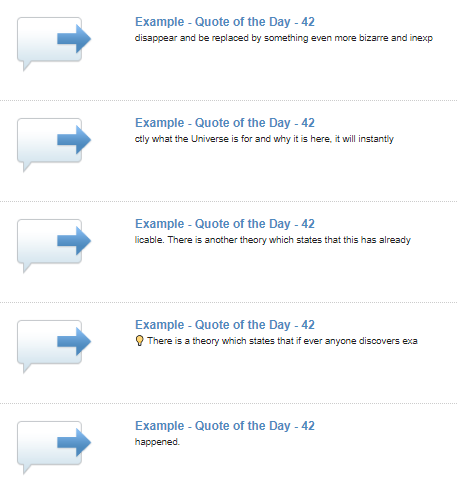
Why is it sorted like this? Why can’t it just show the entire message?
Well, that’s not something I can answer definitely, but I can help you stitch the message back together.
Example Message
Let’s take our example message text and send it from Journey Builder:
💡 There is a theory which states that if ever anyone discovers exactly what the Universe is for and why it is here, it will instantly disappear and be replaced by something even more bizarre and inexplicable. There is another theory which states that this has already happened.
What can we say about this message?
- It uses a single 💡 emoji that doesn’t exist in the GSM 3.38 character set
- This forces the length of each SMS part to decrease from 160 to 67 for multi-part messages (it would be 70 if it was just one message)
- It contains 277 characters and is way too long to fit into a single text message
- Since the emoji is there, Unicode encoding has to be used, this message needs to be split into 5 (yes, five) text messages that appear as one on the recipient’s phone
- If the emoji wasn’t there, the message would have to be split into 2 parts with a length of 160 characters
There’s no issue with actually sending SMS like this – it’s standard and works great.
Well, at least until we get to see how the reporting on this looks like. After the send, we will never ever be able to see the sent message that was actually sent to the customer.
Well, you could view the message in Content Builder, but that will not help much if your message is more complex and contains personalization, formatting and code that pulls data from other systems.
The Reporting Puzzle
Let’s send that Douglas Adams quote as our example message. It should be split into 5 parts when using the “Concatenate Message” option.

The message will be split into those parts:
1: "💡 There is a theory which states that if ever anyone discovers exa"
2: "ctly what the Universe is for and why it is here, it will instantly"
3: "disappear and be replaced by something even more bizarre and inexp"
4: "licable. There is another theory which states that this has already"
5: " happened."Now, let’s see if our test message is displayed when we check the Engagement tab of a contact in Contact Builder:
The parts are in the following order from the bottom to the top: 5, 4, 1, 2, 3:
5: " happened."
4: "licable. There is another theory which states that this has already"
1: "💡 There is a theory which states that if ever anyone discovers exa"
2: "ctly what the Universe is for and why it is here, it will instantly"
3: "disappear and be replaced by something even more bizarre and inexp"Can we trust the order to be the same when we send it again? Nope, the order changes – it’s 2, 4, 1, 3, 5 this time:
2: "ctly what the Universe is for and why it is here, it will instantly"
4: "licable. There is another theory which states that this has already"
1: "💡 There is a theory which states that if ever anyone discovers exa"
5: "disappear and be replaced by something even more bizarre and inexp"
3: " happened."This order is seemingly random and we can’t rely on it to figure out a good algorithm for sorting the parts. We need something that will allow us to have all the parts in order, so that we might concatenate the message.
Checking the reporting
We have three options to check what was sent to a customer:
- Manually checking the engagement history of a contact (that we know we sent the message to)
- The SMS Message Detail Report in Analytics Builder > Reports
- The _SMSMessageTracking data view
We’ll resort to making queries using the data view – it has the most data available and we can automate it easily. Maybe the parts will appear in order there.
SELECT TOP 10
    MobileMessageTrackingID,
    MessageText,
    CreateDateTime
FROM
    _SMSMessageTracking
WHERE
    Name = 'Example - Quote of the Day - 42'
ORDER BY
MobileMessageTrackingID DESCWe run this query and see that the interface sorts the SMS parts in descending order based on the MobileMessageTrackingID (which itself seems to be assigned randomly):
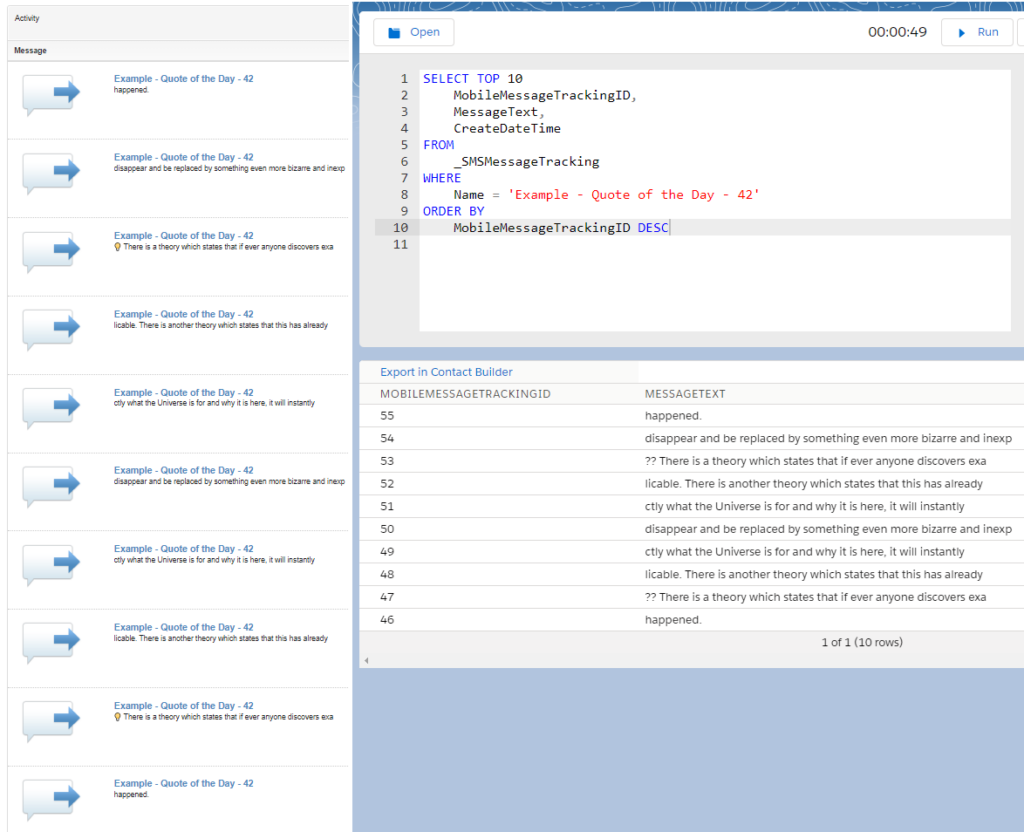
We now also know we can’t base the order on the MobileMessageTrackingID value – we need to find something else.
What do we need to solve the Mobile Connect puzzle?
If we think about it, to stitch the messages together, we need two things:
- A value that allows us to sort the parts in the correct order to reflect the content that was sent to our customers
- A unifying ID that is the same across all message parts of a single concatenated text message
Let’s see if we can find something like this or solve this somehow.
The One Ring Field
We are lucky with the first requirement as somewhere around June 2020 a column called Ordinal was added to the SMSMessageTracking data view that does just that.
As per the data view documentation, it’s a numeric value that:
Represents the parts in a multi-part message. Represented in ascending order starting at 0.
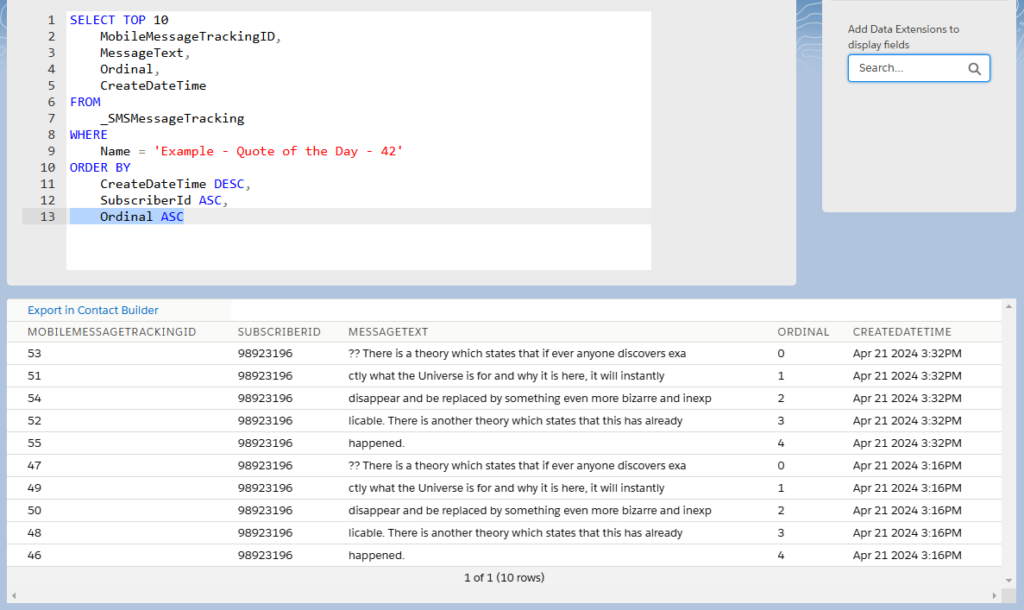
Let’s quickly modify the previous query to sort the results by CreateDateTime and Ordinal,
SELECT TOP 10
    MobileMessageTrackingID,
    MessageText,
    Ordinal,
    CreateDateTime
FROM
    _SMSMessageTracking
WHERE
    Name = 'Example - Quote of the Day - 42'
ORDER BY
    CreateDateTime DESC,
    SubscriberId ASC,
Ordinal ASCThe results finally allow us to read the contents of the message we sent:
This might be already good for quick checks, but that’s not enough if we want to store the merged SMS parts in SFMC or even export it to some other system.
When looking at our sends, we can’t exclude the situation that more than one message will be sent at the same time to a single contact under the same Name*, so we need to find that unique message ID
*This could happen when you have external systems generating the texts and sending them through one outbound SMS.
Isn’t There a Text Message Send ID Already?
We need to find something that will identify all parts of a given message. We check the _SMSMessageTracking documentation and what do we see?
There are already fields like SendID and SendGroupID, but those work only in their specific context (Automation Studio’s SMS or Mobile Connect DE sends) and will return NULL values for Journey Builder sends:
| Column Name | Description | Working Context |
|---|---|---|
| SendID | The send ID number for the SMS send | Populated for SMS messages sent via Automation Studio’s ‘Send SMS’ activity or when an SMS is sent to a DE as Audience. |
| SendGroupID | The group ID for the SMS send | Populates when SMS is sent to a DE from Mobile Connect (does not work this way from Journey Builder) |
Description of the fields in _SMSMessageTracking dataview that return NULL values.
Not all hope is lost though:
If there’s no unique ID of a single message sent to a single contact, we can just make one combining multiple fields into one composite key or use them as multiple primary keys.
Building Our Composite Key
Let’s look into what values are available in the _SMSMessageTracking data view for us to combine them into one message
- As with emails, text messages are sent in jobs and batches, so we’ll use
SMSJobIDandSMSBatchID- Those fields have values for records with
Outbound = 1 - They can only send one message, so we don’t have to include the
Nameof the text message in our key
- Those fields have values for records with
- We want something that identifies the contact, but sometimes the
SubscriberKeyvalue is not there, so we include theSubscriberIDfield instead which is much more reliable - A single contact can have multiple phone numbers in Mobile Connect, so we include the
Mobilefield just to make sure to which number the was sent - If you use more than one business unit, it might be worth including the
MIDas the business unit identifier
Combining this with code is simple:
Concat(MID,'#',Mobile,'@',SubscriberId,'>',SMSJobID,'_',SMSBatchID) as CompositeKey,This would result in the CompositeKey column storing a value like this:
123456789#525513406874@10969756301>4CCE7B6F-4684-4EB0-80B3-86C42C94AC14_1131469We got the key now and along with the Ordinal field, we can start building an automation.
Building the Query
Major blocks are out of the way now, so we just need to put everything together.
Query to Identify the Puzzle Pieces
The first query is quite simple:
SELECT
    s.*,
    Concat(MID,'#',Mobile,'@',SubscriberId,'>',SMSJobID,'_',SMSBatchID) as CompositeKey,
    Format(CreateDateTime, 'yyyy-MM-dd') as CreateDateTimeExcel
FROM
    _SMSMessageTracking s
WHERE
        SMSJobID IS NOT NULL
    AND SMSBatchID IS NOT NULL
    AND Outbound = 1
    AND CreateDateTime > DateAdd(day, -7, GetDate())
AND MessageText <> 'DELETED'What is happening here?
- We pull everything we want from _SMSMessageTracking
- We create the
CompositeKey- This is required for us to join the various SMS parts as described above
- Potential data extension configuration:
- text field with a maximal length of 100
- make it a primary key in addition to the MobileMessageTrackingID – this will make the processing faster
- Optional: We add the
CreateDateTimeExcelfield- text field with a maximal length of 10
- this is only if you would want to export the data outside of SFMC and do pivots in Excel
- We limit the results in the
WHEREclause:- to only Journey Builder sends with
SMSJobIDandSMSBatchIDfields that are not null – this is necessary for building the properCompositeKey - to only outbound messages (those are the only ones we are billed for)
- to a specific date range
- OPTIONAL:
Filter out tracking records with “DELETED” MessageText – this is what is left behind in the data view after a contact has been removed from SFMC.- You might want to remove this condition, though:
while the content of the message is gone, it still provides valuable information about SMS super message consumption
- You might want to remove this condition, though:
- to only Journey Builder sends with
This will be a subquery that we’ll wrap in an aggregate query.
Final Query:
Rebuilding the Text Messages
We built the CompositeKey, now we just need to use it to group the _SMSMessageTracking records (using both the key and the SMS name):
SELECT
Name,
sub.CompositeKey,
STRING_AGG(MessageText, '') WITHIN GROUP (ORDER BY CompositeKey ASC, Ordinal ASC) AS FullMessageText,
MAX(CreateDateTime) AS CreateDateTime,
FORMAT(MAX(CreateDateTime), 'yyyy-MM-dd hh:mm:ss') AS CreateDateTimeExcel,
COUNT(*) AS MessageParts
FROM
(
SELECT
    s.*,
    Concat(MID,'#',Mobile,'@',SubscriberId,'>',SMSJobID,'_',SMSBatchID) as CompositeKey,
    Format(CreateDateTime, 'yyyy-MM-dd') as CreateDateTimeExcel
FROM
    _SMSMessageTracking s
WHERE
        SMSJobID IS NOT NULL
    AND SMSBatchID IS NOT NULL
    AND Outbound = 1
    AND CreateDateTime > DateAdd(day, -7, GetDate())
    AND MessageText <> 'DELETED'
) sub
GROUP BY
Name,
sub.CompositeKeyOur key allows us to leverage the STRING_AGG() function in conjunction with our GROUP BY aggregation:
STRING_AGG(MessageText, '') WITHIN GROUP (ORDER BY CompositeKey ASC, Ordinal ASC)which concatenates (joins strings) from multiple MessageText records with the same CompositeKey ordered by the Ordinal value in ascending order.
Here’s what will be returned after running the entire query, and how to prepare a basic set of columns for your data extension.
| Column name | Data Type | Role |
| Name | Text (100) | The technical name of the SMS in Content Builder |
| CompositeKey | Text (100) 🗝️ Primary Key | Our custom key that allowed us to combine the various SMS parts. |
| FullMessageText | Text (2000? 3000?) | The entire, concatenated text message. Adjust the max length accordingly. |
| CreateDateTime | Date | When the _SMSMessageTracking record was created |
| CreateDateTimeExcel | Text | If you want to analyze the output of this query outside of SFMC, this might help by standardizing the date format. Use either a date time yyyy-MM-dd hh:mm:ss or just the date with no time: yyyy-MM-dd |
| MessageParts | Number | Indicates how many SMS parts were used to send the entire message. Multiply this by the SMS Multiplier to calculate the message cost. |
Sample result:
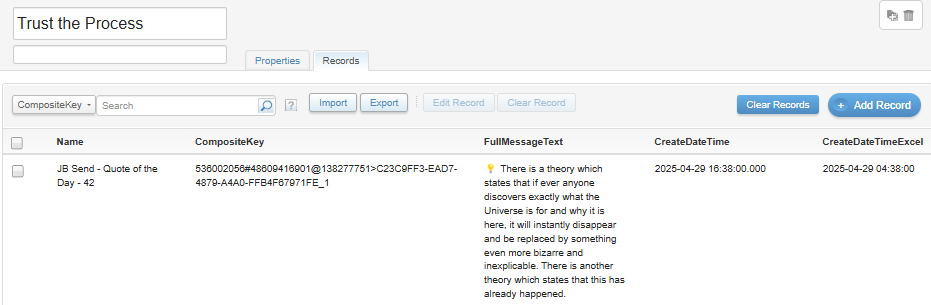
We’ve done it, this is what we wanted the entire text message is there, but there’s one thing you need to keep in mind:
This whole thing works better in Automation Studio.
See why below.
The Case Against Query Studio
The final query seen above might be good for super quick checks in this tool, but in the end it might fail you do to its limitations.
See the results rendered here:

Two things happened here that obscure what was sent:
- The 💡lightbulb emoji got converted to two question signs (
??) - The entire message was trimmed to just 255 characters:
?? There is a theory which states that if ever anyone discovers exactly what the Universe is for and why it is here, it will instantly disappear and be replaced by something even more bizarre and inexplicable. There is another theory which states that thiThis part was cut:
s has already happened.Why does this happen?
Query Studio pushes every value into text fields with a maximum length of 255 characters. See the QueryStudioResults data extension:
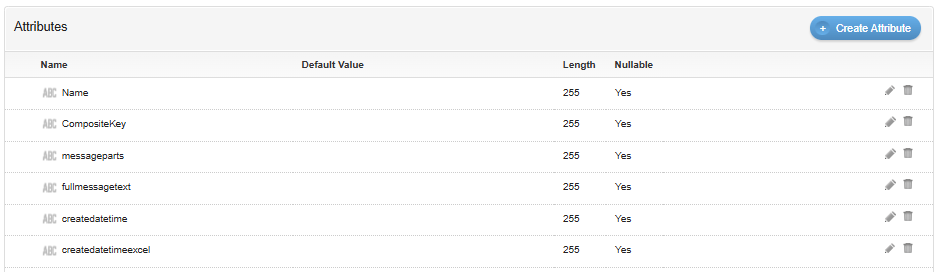
Every character past the 255-character limit is trimmed. This and the emoji transformation happen because it’s a Unicode character and Query Studio changed our FullMessageText from
STRING_AGG(MessageText, '') WITHIN GROUP (ORDER BY CompositeKey ASC, Ordinal ASC) AS FullMessageTextto
rtrim(left(coalesce(CAST(STRING_AGG(MessageText, '') WITHIN GROUP (ORDER BY CompositeKey ASC, Ordinal ASC) as char(255)),'<null>'), 255)) as fullmessagetextThe CAST(… as char(255)) attempts to fit the emoji (which is a Unicode character) into the char data type, which does not support such signs (and is now limited to 255 characters). When this fails, an emoji character will be transformed into a single (for older emojis) or double question marks (for more modern emojis).